Inviting new users
Administrators of a Call Tracking account can add new users. As an Administrator, you can either send email invitations one by one, or send mass invitations to add several users at once. You can also restrict user access to some specific tracking numbers in the account.
How to add a new user
To invite a new user into the account, get to the Users tab and click on the Add New button at top right of your screen.

Then, select the new user’s role, type in his or her email address and, if required, first and last name on the next page.
For your information, roles are organized hierarchically as follows:
- Owner: The Owner has access to all functionalities and management resources.
- Administrator: An Administrator has management rights to the Numbers, Audios, Users and Integrations tabs. They can also consult Reports.
- Analyst: An Analyst only has access to Reports.

If you wish to add more users with a detailed profile and / or a different role, click on Add another user below the first line and fill up the new one.
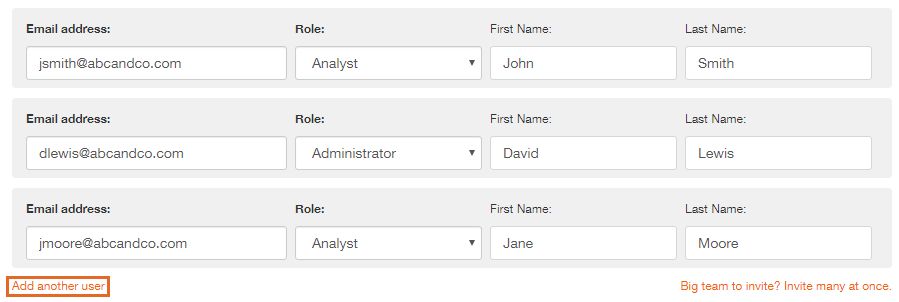
Once you completed the form, click on Invite users now. The new users will receive an email invitation containing a sign in URL, and they will have 7 days to accept it before the link expires.
How to send mass invitations
For big teams, you can invite many users with the same role at once, without filling up the form for each individual user. To do this, below the regular invitation form, click on Big team to invite? Invite many at once.
Then select the role for all these users, and type in their email addresses separated by a coma and without empty spaces.
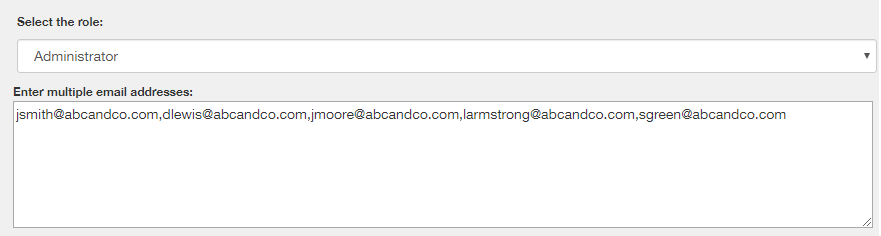
Same as previously, once the list is completed, click on Invite users now. The new users will receive an email invitation containing a sign in URL, and they will have 7 days to accept it before the link expires.
How to restrict user access to tracking numbers
When inviting one or more users, you can restrict their access to specific tracking numbers in your Call Tracking account.
To add tracking number restrictions, select the allowed tracking numbers at the bottom of the form, before sending invitations to users.

Once the invitations sent, click on the Filter button (next to the Add New button) to check your pending and accepted invitations.
Please note: there can only be one Owner per account. If you set up a user with the Owner role, this user will immediately become Owner of the account. The current Owner will then become Administrator.